Texts are to be read/watched/listened to for day they are listed. Homework in addition to texts will be presented in yellow. The schedule is subject to change; it is your responsibility to check it regularly.
We meet as a full class in the classroom unless the schedule reads, “Meeting Individually.”
M 8/25: Introductions, Syllabus, Book; sample student websites: Collin, Jayne, Kaylee, Keely, Nick, Sophia; students who built on their skills after graduating with Wordress, Squarespace, or other sites: Makiah, Dana, Denzel, Madison
Assignment for Wednesday, 8/27 Please read through the course web site carefully and post two questions you have about it to this anonymous form:
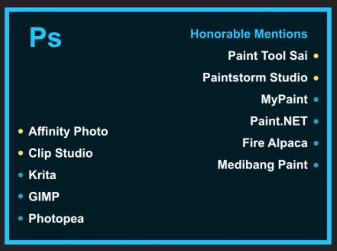
Image-editing software (such as, Photoshop or any of the below alternatives should work; graphic by Bonnie Kyburz)
As many different browsers as your operating system supports (e.g., Chrome, Opera, all free)
If you have any other questions, please let me know!
W 8/27: Brief intros, get to know each other; What is the Internet?; 40 Maps; submarine map
Assignment for Friday, 8/29 If you have yet to post your questions about the syllabus, please do so by Thursday at 5:00pm so I can prepare them for class on Friday:
https://forms.gle/EaqmsFTJBrpVJ8Dg6
You are required to have your own web domain, which you should have purchased in COM 200. If not, or if it has expired due to lack of use, please go to Reclaim Hosting, click Sign Up, and choose the Personal option ($35/year for the hosting plus $15 one time fee for the URL). Make sure your URL is professional and easily identified with you, like williamwolff.org is identified with me. Choose a .com or .net domain; try to avoid .org unless the others are taken. You will need to have the URL hosted by them, as well.
VERY IMPORTANT: If you purchased a URL from Reclaim Hosting for a prior class and your URL has been expired for more than 30 days, there is no guarantee Reclaim Hosting will be able to get the domain back, and for more than 90 days the data is no longer on their servers and it can take several weeks to get the old domain re-established. I strongly recommend you purchase a new domain and make sure you don’t let it expire. Students who have waited to get expired URLs re-established have found themselves very behind.
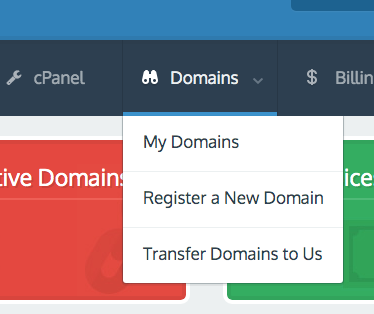
To check the status of your URL, or your Domain, log in to Reclaim Hosting and then hover over the Domains menu item and click on My Domains:
You MUST have your URL with you for class on Friday.
VERY IMPORTANT:Make sure you see the confirmation email Reclaim Hosting sends to you that has the subject heading, “[Reclaim Hosting] New Account Information.” It may take a day to get that confirmation email, so please don’t wait until the last minute to sign up. If you don’t see it, look in your spam. You MUST click on the link in that email or in a few weeks Reclaim Hosting will cancel your purchase.
If you have any questions, please do not hesitate to email me.
F 8/29: URL check; URL Form; syllabus questions Share Individual Story of Learning Documents
Week Two: First Look at HTML, Starting on Workflow
M 9/1: No Class — Labor Day
Assignment for Wednesday, 9/3 Just a few things over the holiday weekend as we prepare to get into the coding next week.
If you have not downloaded and installed the software from the Wednesday 8/27 homework, you must have it in class on Wednesday.
If you did not add your URL to the below form on Friday, please do it immediately:
https://forms.gle/xgfMSmRMXCLTemL28
If you already have a WordPress blog set up at your URL, you will need to clone and move it for class (no info will be lost). To do this, please watch use this tutorial to do so by the start of class Wednesday:
Getting Started with The Story of Learning I will be sharing with you your individual My Story of Learning GoogleDocs. That document is only available to me and each individual student; no one else can see it. Please watch this important video about the Story of Learning and come to class with any questions you have.
Your Story of Learning Part 1 is due 9/5 and your first weekly update is due on 9/12.
Assignment for Friday, 9/5 We’re going to continue with our slow pace to start the semester by reading and taking some notes on just the Introduction and chapter 1 of our required text, HTML & CSS by Jon Duckett.
We will be using the book in class on Friday, so please bring it with you.
If you have yet to install the required software from the homework for 8/27, you must be the start of class on Friday. We will be using Brackets in class.
Part 1: My Story of Learning is due on Friday by 11:00pm. Please take your time with it and don’t just jot a few sentences. Present yourself well.
F 9/5: Duckett Chapter 1, software check, typing in HTML Part 1: My Story of Learning Due by 11:00pm
Assignment for Monday, 9/8 Your My Story of Learning Part 1 was due on Friday evening, so please make sure that is complete. Your first Weekly Update is due Friday 9/12 by 5:00pm.
The assignments for this coming week are going to introduce you to your first HTML coding and the process of transferring your newly coded files to the server so you can read them on the web. There are two videos for the three classes week and they are below.
Monday marks the start of our weekly meetings, which as you know will take place via Zoom so we can share computer screens. I have emailed (or I will) you a link to the individual meeting schedule, but you can also access it on the Readings and Texts page. It is your responsibility to see when your weekly meetings are, as they rotate so everyone gets a Friday off from class. Be sure to arrive in the class Zoom (link also on the Readings page) a few minutes before so you are not late.
You are responsible for completing the required work for the day it is due — even if your individual meeting is not on that particular day. I will check that it is done. It is due by the time class would usually start. The assignments build on each and take time. Do not let yourself get behind.
Please watch the below videos in the order they appear below; the first is needed in order to understand the second. We went over some of this in class on Friday, but seeing it again here will help. Take your time as you work through these videos and the coding below and for the other days.
Take notes; as riveting as they are, don’t watch them as if they are Netflix show. I’ve found students learn the material faster when they take notes. It can be tricky to get at first, but over time it will appear more natural. Don’t skip steps; with coding that leads to confusion. If you have questions or have trouble through any steps in the process, please let me know.
The Videos This video will introduce you to the concept of servers, how we transfer files to the server, and web design workflow. (Some of it we discussed in class on Friday, but goes into greater depth.)
The video covers: 0:00: What happens when you go to a web page using a browser and how servers function 6:00: Differentiating between The Internet and The World Wide Web 8:10: The Web Design Workflow (including creating your web design folder) 17:10: Starting the list of Best Practices 18:12: Transferring files from our computer to the server using FileZilla 27:50: Code, Save, Upload, Refresh, Repeat
This video will introduce you to how to setup your FTP account, connect to and use FileZilla, and start using Brackets.
The video covers: 0:00: Getting the FTP account set up in Reclaim Hosting 4:00: Logging in to FileZilla using your FTP login info 9:25: Getting started with Brackets (or Atom) and creating your index.html page 11:30: The standard HTML skeleton for an HTML page 15:50: Using FileZilla to upload files to the server 17:35: Refreshing Firefox Dev Edition to see the coded page (YAY!) and repeating the process
The Coding Assignment Part 1 Some of this was completed in class on Friday. If you completed it, no need to re-do it. Skip to Part 2.
If you were absent on Friday or were unable to complete it, complete it now. If you have not done so already, please read in Duckett the Introduction and chapter 1, on the structure of an HTML page. When completed, I’d like you to try to code a very basic page, copying the code that Duckett presents on page 20. Copy the code verbatim, though you may include your own sample content. Then, also add the following code between the <html> and <body> tags so the start of your code looks like this (added code in bold) — I have added line numbers that should correspond to the lines in Brackets:
Then, Save the page in your web design folder as index.html. Note, always use all lowercase folder and file names.
Part 2 When complete, upload your new index.html file to the public_html folder on your server using the Web Design Workflow steps in the videos above.
If you have trouble, only try to get it to work a few times. If it doesn’t, STOP. Note what you have done and if we meet on Monday, we’ll talk about it. If we don’t meet on Monday, email me immediately so we can set up a time to meet.
M 9/8: Meeting Individually via Zoom W 9/10: Meeting Individually via Zoom
Assignment for Friday, 9/12 If you have yet to complete the homework due on Monday, do that immediately and let me know when it is completed. It needs to be completed before you can move on to the below homework.
You are responsible for the work for each day regardless of when your individual meeting is. Do not wait to get it done. It must be done by the start of class the day it is due.
There are no videos to watch for Friday.
The Coding Assignment Please read Duckett, chapters 2, 3, and 4. In the “index.html” file you worked on for Monday, please experiment with the following:
three levels of headings
paragraphs
line breaks
ordered lists
unordered lists
Do not create a new file; these additions MUST go in the index.html file you already created between the<body></body> tags.
If you are feeling confident, try to find out how to make text bold and italics and add that.
As part of the lists you create, I’d like you to create ABSOLUTElinks to 3 web pages that are important to you.
As you are coding, you can remove the default code you copied from Duckett and replace it with headings and paragraphs that are about you. Welcome people to your site and write a bit about yourself.
Remember, all of this content will be added between the opening <body> tag and the closing </body> tag. The only thing that goes outside the closing </body> tag is the closing </html> tag.
And please follow clean coding techniques, which are discussed around the 12:00 mark in the Setting Up and Using FTP and Brackets video you watched for Monday.
Your first Story of Learning Weekly Update is due Friday, as well. Please make sure you are taking screenshots of your code and website to add to your weekly update.
As always, email me any and all questions you have.
F 9/12: Meeting Individually via Zoom First Story of Learning Weekly Update Due by 5:00pm
M 9/15: Online Individual Meetings with Select Students
Assignment for Wednesday, 9/17 There are three parts to the work for Wednesday: creating the portfolio.html page; linking the index.html and the portfolio.html together, and adding an image. The work MUST be completed in order.
1. Creating the portfolio.html page In Brackets, please create a new HTML file called “portfolio.html” by going to File –> New to create the new file and then Save As, and save “portfolio.html” to your web design folder.
In portfolio.html, code the base structure of an HTML page:
<html>
<head>
<title></title>
</head>
<body>
</body>
</html>
Then, between the body tags add your name as a <h1></h1> heading, using proper coding, such as <h1>Bill Wolff’s Portfolio</h1>.
2. Linking the index.html and portfolio.html together Then, create a RELATIVE link from “index.html” to “portfolio.html” and one from “portfolio.html” to “index.html.” (See Duckett p. 80 for relative linking.)
Upload both the new portfolio.html and revised index.html to the server using FileZilla. When asked if you want to Overwrite index.html, click Okay. Check to see if the links work.
3. Adding an image to your site Before watching the video for Wednesday, please read Duckett on Images, pages 95-102 and 107 – 118. Then, find a photo of yourself that you feel comfortable putting online and rename it something meaningful (like, bill-portrait.jpg instead of PC450854.JPG), using no spaces and all lowercase letters, including in the extension (jpg instead of JPG, for example). Important: the image must be a .jpg, .png, or .gif; no other file format will work. The extension should also be all lowercase: .jpg not .JPG.
Then, watch the video.
The Video
This video will introduce you to coding images in HTML, organizing your directory, and a bit of FTP review. The breakdown:
0:00: Review of the basic HTML skeleton for all pages 4:25: The basic code for images 7:20: Review of Code, save, upload, refresh, repeat, and Best Practices 8:15: Organizing the directory and creating the images folder 14:00: Breaking down the image code according to directory structure and more Best Practices 26:35: Coding the image again in Brackets and uploading it to the server
The Assignment After watching the video, please complete the steps as outlined in the video:
Create a directory (folder) in your web design folder called images (all lowercase).
Put the image you have selected into that folder.
Create a directory (folder) in your public_html folder called images (all lowercase).
Drag your image from the images folder in the web design folder into the images folder in the public_html folder on the server.
If have yet to do so, re-code your index.html file to make it more friendly to someone who is coming to your site. You might explain that you are coding for a class and add a link to your blog, if you’d like. In other words, personalize it and remove all the default stuff that we added during week 3.
Add to your index.html file the code for your image, as explained by Duckett and in the video. (You don’t need to add anything to the portfolio.html file.)
Upload your updated index.html file to the server.
Refresh Firefox Dev edition and see what happens!
Important Note I’d like you to start getting into the habit of doing what is called a Hard Refresh when refreshing your FireFire Dev Edition browser. You will need to do this to ensure your CSS is working when we get to that, but (like much of what we are doing now) it is good to get into the habit of certain practices so it is more natural later. I can explain in more detail what a Hard Refresh does, but essentially it ensures that your coding updates are being rendered.
To do a Hard Refresh in FireFox Dev Edition, using the follow keys instead of clicking the refresh icon:
And, remember, your first Weekly Update was due on Friday, so please complete it if you have yet to do so.
As always, email me any and all questions you have.
W 9/17: Meeting in the classroom: Images
Assignment for Friday, 9/19 There are two parts to the work for Friday: 1. coding accessibility into your image code, and 2. a reading and video about inclusive design. Make sure you have time to complete both.
Part 1. Coding Accessibility In class on Monday we worked on getting our code correct and our images, as well as what ALT and Title text are. For Wednesday, please make sure your have:
working absolute and relative links
an image on your page that contains appropriate ALT and Title text
clean code
If you weren’t in class, here is a video about ALT and Title text. Please watch it:
This video introduces the concept of Access First Design, how to create appropriate ALT and Title text for images, and accessible links. It covers:
0:00: Access First Design 4:40: Defining ALT and Title Text 9:15: First example of ALT and Title text 13:45: Second example of ALT and Title text 18:00: Creating accessible links 22:20: Final thoughts on accessibility and Human Centered Design
Inclusive Design at Microsoft is now run by a 2010 SJU grad, Christina Mallon, whose arms became paralyzed soon after graduating due to complications from ALS (Lou Gehrig’s Disease).
I’d like you to watch the below video of her talking about inclusive design. As says in the opening, “I look at disability as though I am disabled by design. It’s not motor-neuron disease that made me disabled. It’s the design of things”:
For class on Friday, I’d like you to choose one of the design principles discussed in the Toolkit — Recognize Exclusion, Learn from Diversity, or Solve for One, Extend to Many — and look for examples of them in your daily life and activities. Choose two of those examples, take a photo or screenshot of each, and be prepared to discuss them in class as examples of how the design results in disability.
Assignment for Monday, 9/22 There are two parts to the assignment for Monday.
Part 1. tags.html reflection Part 1 is going to give you an opportunity to review what you have learned so far, reflect on how you are feeling about what you have learned so far, and provide me with some additional insight about where each one of you are at.
On Friday will email you a file, tags.txt, which asks you to follow some prompts by adding the necessary code. For example, you will see:
<!-- PUT THE APPROPRIATE OPENING AND CLOSING TAGS AFTER THE DESCRIPTION -->
<!-- unordered list --> ADD RESPONSE HERE

<!-- ordered list --> ADD RESPONSE HERE
All you need to do is replace ADD RESPONSE HERE with the appropriate code. There are also a few questions to respond to.
Though I will be assessing it, this is not a quiz, nor are you expected to have memorized any of the code. It is merely a moment share what you have learned and reflect a bit. You are welcome to use the book. The book’s index is extremely helpful. I recommend completing it by yourself, however, because it will give you a better insight into what you, yourself, knows.
To complete the assignment, follow these steps:
Download tags.txt to your computer USING CHROME OR FIREFOX. DO NOT USE SAFARI!!!!!!!!!!
Open it in Brackets by going to File –> Open and then save it to your web design folder as tags.html.
Complete the document, saving as you go.
Upload it to your public_html folder on the server by classtime on Monday. I’ll be able to find it and look at it after that.
Part 2. Emotional Design and Found Portfolios This work is going to get us started on considering the design elements of our sites and not just code.
Please read chapters 1, 2, and 3 of Aarron Walter’s Designing for Emotion (it’s a quick read with lots of pictures–see the Readings & Texts page).
Search the web for FIVE portfolio web sites by professionals in the field(s) you wish to go into upon graduation that you think embody emotional design principles and employ content well.
Don’t forget to complete your Story of Learning Weekly update by 5:00pm Friday.
Assignment for Wednesday, 9/24 For Wednesday, we are going to continue with Emotional Design and start thinking about who we are dsigning our site for–that is, our intended audience and expectations about them.
First, however, please read through the Project 1 assignment and come to class with any questions you have.
Then, please complete the emotional-design-notes-f25.docx that I introduced in class on Wednesday. Answering these questions will be very important as we begin to create a personality for our site. You will be adding to this document based on the Sinek video below and another assignment for Monday. Please have Parts 1 and 2 completed for class on Wednesday. This assignment will be assessed.
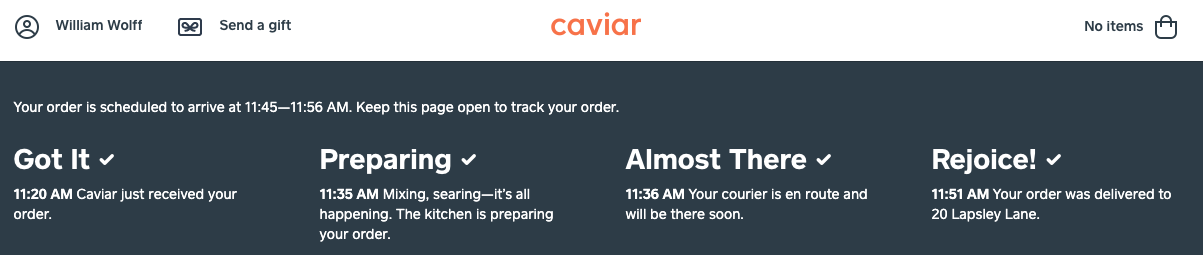
Please read Walter, chapters 4 and 7, and Boulton (2007) and Muller (2012) on White Space (all available on the Readings and Texts page), and be ready to discuss them in class. Also continue looking for web sites that you think have a clear personality. Caviar, for example, has personality:
Please watch the below TED talk by Simon Sinek:
After watching Sinek’s talk, I’d like you to add to the Emotional Design notes document Part 2. two of your Why? statements. First address the question:
What is your core belief that guides all of your actions in the world?
Second, address the question:
What is your core belief that guides (or you hope to guide) your actions in the workforce?
Start each sentence with “I believe. . . .” The two can be related, though they don’t need to be.
Assignment for Wednesday, 9/26 Please read through the Design Persona Assignment and come to class with any questions you have.
The assignment for Friday is on the subject of diversity in the tech industry, a subject of great importance. It will further our discussions on being intentional in your design and career choices. Please read the articles by Sara Harrison (2019), Olu Niyiawosusi (2020).
Then, I’d like you to look up the diversity statistics (or demographics) of the field you hope you join one day. (If you are unsure what you want to pursue, you can look up communications, marketing, or web design.) You can just search, “[your field + diversity statistics” or “[your field] + demographics.” Based on what you find, complete the following questions under the “Add Chosen Field Diversity Stats below” prompt in the Emotional Design Notes document we started last week week:
What are the demographics of your potential future field? Try to find statistics from 2021 or later. Break them down by (if possible) at least race, gender, gender identity, age, and disability. What do these statistics tell you about the diversity of your possible future field?
What kind business are you hoping to work for? Woman or minority owned? Why and what do you think the benefit would be working for that kind of business?
What would need to be part of a business’s mission statement to make you want to choose them? If you are interested in starting your own business, how will you show your commitment to diversity and inclusion?
When finished, share the document with me so it can be assessed. If, before you share it, you would prefer to remove your statements where you discuss your “core belief that guides all of your actions in the world,” please do. That was assigned for your own personal benefit and I don’t need to see it. I do, however need to see your answer to the question
What is your core belief that guides (or you hope to guide) your actions in the workforce?
Be ready to discuss the articles and have the answers to the questions ready in class.
Assignment for Monday, 9/29 We move back to individual meetings via Zoom next week. Be sure to see the schedule on the Readings and Texts page. The work must be completed each day, regardless of if you are meeting with me, and on days you are meeting with me, the work must be done prior to our meeting.
There is quite a bit for Monday. Please follow the instructions exactly as written and complete it in order.
We are starting to work only in your portfolio.html file, not your index.html file. We will get back to index.html later in the semester.
In your portfolio.html file, add three levels of headings to your page:
If you have not done so already, <h1></h1>: your name;
<h2></h2>: the word Portfolio;
<h3></h3>: used twice, once for each of the titles of each of your portfolio items you will add in step 3.
Go back to your emotional design notes document and look to the content section.
Choose the two most important content items you wrote about and add them to your portfolio.html file below the appropriate <h3></h3> tag using the appropriate HTML image code. These should be images. If your item is a PDF doc, for example, take a screenshot of it, change the file name to something meaningful. (Please do not include videos just yet because we have not learned how to embed them.)
Upload these portfolio item images to your images folder on the server.
Directly under each portfolio item, include the following:
A brief paragraph in which you describe the item you have created, if it was created for a particular community partner, your goals for it, and your role in creating it (sole creator, part of a team, etc.).
Under the paragraph, include an unordered bulleted list where you list
the software and/or hardware used (such as the camera)
any camera settings that were used
creation date
any custom pallets or shortcuts you created for the project
a link to download a PDF version of it (if applicable)
Save and upload your updated portfolio.html file to the public_html folder (make sure you’re not putting in the images folder).
Then, please read pages 429 – 439 in Duckett on HTML5.
Then, watch the below video, which elaborates on Duckett. It also contains important information on HTML commenting, which is a way to help you leave notes for yourself in your code. Use these often.
The Video
The video covers:
0:00: Introduction to HTML5 2:45: Breaking down <section> and <header> tags 9:08: HTML Comments and adding notes in your code for yourself 10:58: Breaking down the <figure> tag
HTML5 Assignment After reading Duckett and watching the video, go to your newly updated portfolio.html file and add the following HTML5 codes in the appropriate places:
<header></header>
<section></section>
<figure></figure>
Be sure to use the commenting techniques outlined in the video, as well.
If you add the codes correctly, you should not see any change to your portfolio as it looks in the browser.
If you have any questions, please let me know.
M 9/29:Meeting Individually via Zoom
Assignment for Wednesday, 10/1 If you have yet to complete the work for Monday, please do so immediately. You’ll be using the code created for Monday in the work you do for Tuesday.
We’re going to be starting to learn CSS (Cascading Style Sheets), which is the coding language used to style web sites. The video for Wednesday discusses how to conceptualize what is happening when the browser is reading both .html and .css files together to lay out a web page, and highlights some very basic CSS coding. Both videos were created with the understanding that you will also read Duckett, so please be sure you are doing that, as well.
Now is the moment when coding starts to get a bit more more complicated, so please pay special attention to the videos, take detailed notes, and use the book as a resource.
The Video
The video covers:
0:00: Introduction to CSS and envisioning the relationship between .html and .css files 3:00: The stylesheet code that links .html and .css together 10:58: Creating the styles folder (or directory) in FileZilla 11:55: Adding the stylesheet code to your .html file in Brackets 14:05: Creating the main.css file in Brackets 15:01: Coding a basic CSS page with color and uploading the files to the correct directories 30:30: What to look for when your page isn’t displaying as you think it should
The Assignment After watching the video, make sure you have created the following that was described in it:
the styles folder (or directory) in the web design folder on your computer and the public_html folder (or directory) on the server;
the main.css file saved to your styles folder on your computer;
the stylesheet linking code in the <head></head> section of portfolio.html <link rel="stylesheet" href="styles/main.css" type="text/css" /> (Note, if you copy and paste this code from here, make sure the “” are square and not rounded. Rounded ones will cause it not to work.)
When that is complete, please read Duckett 227 – 237 (ignore 238 and the rest of chapter 10 for now) and chapter 11, which introduces stylesheets (CSS) and how to style color in various ways (ignore the CSS3 stuff for now).
Please try to style color to the following selectors in your new main.css file:
body
h1
h2
h3
p
li
Please note that though we are working in the portfolio.html file right now, we are just testing out the CSS code and colors and playing a bit. Once you have your design persona finished, you’ll be changing the colors based on what you wrote in it.
As mentioned in a prior homework, you will need to see changes to the code in your browser by using a hard refresh. To do a Hard Refresh in FireFox Dev Edition, using the follow keys instead of clicking the refresh icon:
As always, if things aren’t working for you as you code, please email me and let me know what is happening in as much detail as possible. Be sure to send me screenshots of Brackets and FileZilla.
Open Coding starts this week, which is extra time for you to get help with your coding and anything else relating to class in addition to my normal office hours. They will be TH 12:30-2:30. You will be able to sign up on the Individual Meetings Schedule page. I’ll let you know when signups are available.
W 10/1: Meeting Individually via Zoom
Assignment for Friday, 10/3 The videos and assignment for Friday will continue to expand our introduction to CSS by focusing specifically on styling fonts and lists.
To prepare for the video, I’d like you to read Duckett chapter 12 on text and chapter 14, only the content relating to lists. Please also read Santa Maria, chapters 3 and 4, on Web Typography (see the Readings and Texts page). This is a wonderful text that really digs into typeface, so read it carefully. (If you haven’t studied typeface before, I also encourage you to read chapters 1 and 2.)
The Videos
To style fonts on our websites we will be using Google Fonts. This video below introduces you to Google Fonts and how to code Google Fonts into your HTML and CSS files.
The video covers:
0:00: Introducing and using Google Fonts 6:40: Adding Google Fonts code to Brackets
This video introduces how to size and display fonts using CSS. It covers:
0:00: Introducing font-sizing 1:15: On the font-family property 3:12: On the text-align property 4:00: On the font-size property and intro to Ems 9:05: On the letter-spacing property 11:10: On the line-height property 12:25: Pointing to additional font-related properties in Duckett
This video introduces sizing using the EM size unit. The video covers:
0:00: Introduction to Ems 2:25: Calculating Ems in terms of Pixels 2:50: Getting started with Ems, what to keep in mind 4:20: Calculating various Em sizes
The Assignment Now that you have watched the videos on using Google Fonts and the basics of styling fonts, I’d like you to complete the following:
Go to Google Fonts and select TWO Header fonts and ONE body font that you can experiment with for Friday (You will be more deliberately choosing font combinations for your Design Persona; this is just to experiment and play).
Using the video and Duckett as guides, code in your Google Fonts and then style your h1, h2, h3, p, and li selectors with the following:
font-family:
font-size: (use ems, as in the video)
letter-spacing: (use ems, as in the video)
line-height: (use ems, as in the video)
anything else you’d like to try from pages 279 – 282 in Duckett
Style your ul or ol with:
list-style-type: (page 333 in Duckett)
Be sure to upload your portfolio.html and main.css to the correct locations on the server.
Remember, Duckett is a wonderful resource for the kinds of things we are styling and the last page of his book is designed to to help you. It is a list of dozens of CSS Properties with page numbers so you can easily find you need.
I will be checking everyone’s web sites on Friday to see how you’re doing with the styling work, so be sure you are keeping up with it. As you can see, we’re moving faster now.
Remember to complete your Story of Learning weekly update.
And remember, Open Coding is available Thursday from 12;30-2:30. Sign up on the Individual Meetings Schedule.
Week Seven: More on CSS; fonts; and persona to code
Assignment for Monday, 10/6 There is no reading or coding for Monday, since your Design Personas are due by 11:00pm on Monday in the Google Drive folder that Bill will share with class this weekend.
So Bill knows whose document is whose, please name your file:
yourlastname-design-persona-f25.pdf
In class on Monday we will be discussing <h1> font choices, so if you can have an idea which one you will be using, please have that with you. When choosing your fonts, be sure to use Jason Santa Maria’s book as a guide. We’ll be referring to it in class. We had readings from it for Friday.
If you are behind with your coding, please use this time to get caught up.
We meet as a FULL CLASS this coming week in Merion 150.
And don’t forget to complete your Weekly Story of Learning Update.
M 10/6: Full Class Meeting; fonts and meeting with coding groups; typeface-handout.pdf Design Persona Due by 11:00pm in the Google Drive folder Bill shared W 10/8: Full Class Meeting; persona to code and meeting with coding groups; persona-to-code-f25.docx Discuss Midterm Story of Learning F 10/10:Individual meetings with select students; Class Canceled — Enjoy Fall Break!
Assignment for Wednesday, 10/15 We will be meeting as a full class Wednesday and Friday week. This is a VITAL week of class; try to keep up and to be present for each meeting.
This week we’re going to start jumping into more advanced CSS by thinking about layout and positioning. Doing this means talking about boxes, divisions, and floats, three of the more challenging concepts in CSS. But, once you get them you will be well on your way to designing the layouts of most sites. As with everything we’re doing, we’ll be going step by step through the process.
It is vital that you complete the work in the order assigned, and take detailed notes on the box model videos.
Part 1: Persona to Code Make sure you have completed the persona-to-code-f25.docx, which we started in class on the Wednesday before Fall Break. One you’ve completed it, transfer the code from the document to your main.css and see how your page is starting to come together. Then, move to Part 2.
Part 2: Introduction to the Box Model The below video introduces the concept of boxes, otherwise known as the Box Model. The Box Model is the most important concept for understanding how web pages are structured. The model includes your content area, padding, borders, and margins. Please watch it and take detailed notes.
The video covers:
0:00: Intro to design elements as boxes 1:50: Intro to the Box Model: content, padding, border, margin 2:55: Padding 4:30: Border 5:30: Margins and multiple boxes next to each other 9:00: Applying widths to boxes (border-box) 12:05: Conceptualizing box width percentages 17:10: Looking at the widths in the code
Come to class ready to discuss and experiment a bit with boxes.
If you have any questions, please let me know.
Remember your Story of Learning Weekly Update was due on Friday before Fall Break.
W 10/15: Full class meeting (boxes)
Assignment for Friday, 10/17 The assignment for Friday builds on the Box Model video we watched for Wednesday and work we did in class on Wednesday. There are two Parts.
Part 1. If you were absent on Wednesday If you were absent on Monday, you MUST complete this before moving on to part 2. I have created template files for you that must be implemented before moving on with your coding work. They are located on the Project 1 assignment page under the Preparing Your Files header.
The below video walks you through the process of setting up the Project 1 template files. Please go through the video methodically, pausing it as you accomplish each step, then returning to it for the next step, and so on. This will help ensure you don’t miss a step along the way. Each step is extremely important, so follow the instructions exactly as described. Complete all of the steps and then you can move on to Part 2.
Part 2. Implementing the Box Model To prepare for the videos, please read Duckett Chapter 8, which contains a variety of important concepts for more advanced layout, as well as tags you might find yourself using at some point. Please also read Marie Mosely on Box Sizing; much of it may be over your head, which is okay. You’ll start to get it soon.
Then, watch the below video on styling boxes and laying out your portfolio items so they are side-by-side. It should be seen as a compliment to what you have read in Duckett, not a substitute for it. Follow along with the video, completing the assignment as you go.
0:00: Intro and review of the box model 3:30: Adding the box-sizing code 6:50: Centering boxes 10:25: Styling margins 12:50: Styling padding 16:22: Styling borders 21:15: Styling the img tag 24:15: Styling the body tag
The Assignment I’d like you to follow along with the video by completing the following (it will help having Duckett chapter 8 open, as well):
Copy the appropriate code from Marie Mosely’s article on Box Sizing and paste it into the appropriate part of main.css, as described in the video.
Add the necessary code to ensure centering boxes on your page, as described in the video
Style margins, padding, borders, images, and the body, as appropriate, and as discussed in the video
Try sending questions you have to members of your coding group, and if they aren’t able to help, send them my way and bring additional questions you have to class to talk about with your coding group.
Have fun with it!
F 10/17: Full class meeting (boxes) Midterm Story of Learning due by 11:00pm
However. don’t forget that your Week 9 weekly update was due on Friday.
M 10/20:Class Canceled Full Class Meeting; Validating code; adding additional portfolio items Project 1 Rough Draft Checklist (.pdf) W 10/22:Class Canceled for Midterm Conferences F 10/24:Class Canceled for Midterm Conferences
Week Ten: Floats and Divs, Intro to Responsive Design
Assignment for Monday, 10/27 The first requirement in Project 1 is your page should “contain a writer, artist, or professional statement based on your Why, How, and What statements composed in and for class.” You used or adapted your Why statements in your Design Persona.
For Monday, I’d like you to code into your portfolio.html page your “writer, artist, or professional statement based on your Why, How, and What statements.” Place the statement above your portfolio items. Code and style it using appropriate HTML5 and CSS tags.
Part 1. If you have yet to complete the work for Friday, October 17, that MUST be done before you move on to the work for Monday.
Do not skip over the part where you copy the appropriate code from Marie Mosely’s article on Box Sizing and paste it into the appropriate part of main.css, as described in the video.
When you have completed all of Part 1, go to Part 2.
Part 2. The coding assignment for Monday is going to introduce you to positioning elements on your page using class/id and float. These are important concepts to learn, as you will use them whenever you code more advanced layouts. The first video introduces you to the concepts—watch it carefully and take notes—and the second video walks you through the implementation.
To prepare for the videos, please read in Duckett: pages 181 – 186, and 369 – 376. You will also need to have open this document: floating-f25.pdf.
The Videos The first video introduces the concept of positing using class/id and floats, explaining how and why things work. We must understand the how and why before we implement. The second video discusses implementation. Please watch them in order, taking notes on the first. The second is designed to walk you through completing the work while you go.
This video discusses how to position elements on your page using class/id and floats. Specifically, it covers:
0:00: Intro to positioning parts of your page and what you should have open while watching the video, as well as the assignment requirement that your portfolio items appear side-by-side 2:15: Overview of sketch depicting elements side-by-side 4:40: Intro to class and id attributes 6:40: Defining the class attribute, which can be used multiple times 7:15: Defining the id attribute, which can only be used once 8:00: Coding class/id attributes in HTML and the importance of naming 9:35: Coding class/id attributes in CSS and how HTML and CSS are connected 10:20: How the class/id attributes look in actual HTML and CSS code and why I am using class instead of id 12:00: Intro to positioning using floats and widths
This video walks you through positioning your works samples on your portfolio.html page using class/id, float, and clear. Specifically, it covers:
0:00: Intro message about ignoring overflow: auto; in the video 1:05: Intro to positioning elements and what documents you need to have open while watching the video 3:35: Removing the height and width functions from the img in portfolio.html 5:35: Adding classes to the section tags in portfolio.html 8:05: adding text-align: center to the html selector in main.css 9:05: Adding section.left and section.right selectors and associated code to main.css, and explaining the code 11:45: Explaining how browsers interpret and present floated elements and the clear attribute 17:35: Adding the code necessary to ensure the images fit within the boxes by styling the figure and img 23:30: Making additional adjustments to the code
The Assignment Please complete the steps in the second video so you have by Monday your portfolio items side by side, using floating-f25.pdf as a guide.
Remember your Week 10 Weekly Update this week was due on Friday.
Assignment for Wednesday, 10/29 Please make sure you have completed the work for Monday and you are able to check off all the boxes on the Project 1 Rough Draft Checklist (.pdf).
The, move on to the following video, which introduces you to validating your code, which is the process of using software to determine if there are errors in your code. To validate your code, you’ll have to install the Web Developer Toolbar Extension in Firefox Developer Edition (if you haven’t already). You need to have Firefox Developer Edition open when you click on the link.
The Video
This video discusses strategies for checking for errors and validating that your code is correct using online validation tools and the Web Developer Toolbar. It covers:
0:00: Installing the Web Developer Toolbar Extension in Firefox Developer Edition 1:35: Error Checking Steps 3:00: Validating HTML using the Web Developer Toolbar 6:00: Validating CSS using the Web Developer Toolbar 13:15: Additional Error Checking in the Code 16:30: Review of Using Responsive Design Mode and Talking About Mobile Features
Note that the last minute or two vanished when I was editing, so the video ends rather abruptly, but that was just final parting words.
If you have any questions, try to address them to your coding group and if they can’t help, please let me know.
Assignment for Monday, 11/3 We have individual meetings all this week, so make sure you see when your meeting is. The Individual Meetings schedule is linked from the Readings and Texts page.
The work for Monday is going to continue what we started about Responsive Design in class on Friday and is broken in two parts:
Part 1. If you were absent Monday or want to review If you were absent or you want to review what we discussed in class, please 0:00 – 29:00 in the below video. Note that was the first video I made post-COVID back in Spring 2020 so there are a few hiccups in there as I was working through the kinks of video making.)
I recommend a pencil and not a pen so you can erase, as needed.
The Video
This video on responsive design covers:
0:00: Review of the main.css stylesheet 4:35: Creating sketches for phone and tablet screens 12:50: Moving from sketches to code 16:20: Completing the preparing-for-phone-tablet-s24.docx handout to help you move your code 22:35: Removing redundancy from your code
It might be useful for you to complete the sketches and the handout by hand and not on the computer, which is just fine.
Part 2. Work for Monday For Wednesday, first please first read “A Reference Guide For Typography In Mobile Web Design” by Suzanne Scacca, playing close attention to her discussions on fonts, font-sizing, and screen real estate (that is, how to take advantage of space on a small screen). The first 1/3 of the article is more intro to design-in-general stuff. It’s really well-written and -presented, but you can scroll through it if it’s review. Definitely start reading in earnest at the heading, “Typography For Mobile Web Design: What You Need To Know.”
Please watch the remainder of the Preparing for Responsive Design video (see above; 28:30 – end), which covers coding the phone screen and uploading the changes.
For Monday, please complete the process as discussed in the video. That is:
style your phone screen, and
if you feel confident, also style your tablet screen, as well.
However you style the widths, use Scacca’s discussions on mobile design to inform your phone and tablet font sizing. I am going to be asking you why you decided to size things the way to have and I will be expecting responses that reference Scacca.
If you have any questions, please let me know. And don’t forget to complete the Week 11 Weekly Update.
M 11/3: Meeting Individually via Zoom
Assignment for Wednesday 11/5 and Friday 11/7 As you continue to work on your portfolio page for computer, phone, and tablet, I have added three videos, a short one on styling links, another on embedding responsive media (audio, video, etc.), which follows along with the Responsive Media Embedding Tutorial (.pdf), and another on background images and adding footers (.pdf).
You are only required to watch and accurately style your links. The other two videos are only necessary if you have embeddable media to add to your portfolio and/or would like to try to add background images. Everyone will be required to have footers in Project 2, so you might start to add those now.
You have all week to work on these, but try to implement them sooner rather than later just in case you run into some issues.
The Videos
This video discusses styling links using CSS. It’s only 5 minutes, so no timestamps needed.
This video discusses embedding responsive video and audio, following the instructions in the Responsive Media Embedding Tutorial (.pdf). It covers:
0:00: Introductory remarks and the tutorial we’re following 1:30: Creating the HTML5 skeleton so you can easily enter the media code, including the importance of comments 4:10: Styling and explaining the .media-responsive class in your css file 5:25: Styling and explaining the iframe 6:25: Creating the media-responsive class in the HTML 8:05: Copying YouTube embed code and pasting it within media-responsive class in the HTML 9:05: Copying Vimeo embed code and pasting it within media-responsive class in the HTML 10:40: Copying SoundCloud embed code and pasting it within media-responsive class in the HTML 11:40: Uploading the css file, seeing the media on the site, and adding margins between the media to add some white space 13:00: Testing to make sure the media is responsive on phone, tablet, and computer
This video covers how to add a single background image and add a background pattern that tiles throughout the whole page. The video follows the instructions on page 1 in background images and adding footers (.pdf) and covers:
0:00: Coding a single background image 11:20: Coding a background pattern
If you have any questions, as always, please let me know.
W 11/5: Meeting Individually via Zoom F 11/7: Meeting Individually via Zoom Sunday, 11/9: Project 1: Responsive, Accessible Portfolio Page and Reflections Due by 11:00pm
Assignment for Wednesday, 11/12 The homework for Wednesday is going to get us started building our professional website for Project 2, specially by creating our About and Contact pages. Before moving on, please read through the Project 2: Responsive, Accessible Web Site assignment page and come to class with any questions you have.
While we’re getting started on Project 2, please do not edit your portfolio.html file until I let you know you can. I need to assess them first.
The Video The below video discusses Project 2 and creating your about.html and contact.html pages.
The Assignment For Wednesday, please create your About page and get started with your Contact page. Come to class with any questions you have.
W 11/12:Full Class Meeting: About Project 2; About and Contact pages
Assignment for Friday 11/14 Friday I will be meeting with select students online. We will not be meeting in class. If you want to meet with me, as well, you can add your name or reach out and we can find a time. There will also be Open Coding this Thursday.
For Friday, all students must work on correcting all the issues I noted on their portfolio.html page. If there is anything you don’t understand, try to come to open coding and/or email me.
Also, please populate your about.html and contact.html pages. You should move your why/personal statements to your about.html, as it is more appropriate there.
Week Thirteen: Work on Project 2: Navigation and New Home Page
Assignment for Monday, 11/17 With the assignment for Monday, we are finally getting back to our home (index.html) page. But, first, be sure you have worked through all (or close to all) of the issues I may have circled/mentioned on the Project 1 checklist I handed back on Wednesday. Focus heavily on reducing redundancy.
The New Home Page The home page we’re creating is going to act like a landing page, using images of your own choosing. These images should tell a story about who you are without any words. Doing so will introduce us to having another css document, imagehome.css. I have provided a template, which is on the Project 2 assignment page.
The images MUST be the exact sizes as described in the video and on the Project 2 assignment page. If they are not the exact sizes, they will not display properly on each device. The images cannot be resized; they must be CROPPED to the exact size.
This video describes the process of creating full screen images for your homepage on all screen sizes. It covers:
0:00: Introduction 2:37: Sizing images for phone, table, and computer screens (Note: you cannot simply resize an image; you must CROP them to the actual sizes on the assignment page.) 7:33: The project templates and how to copy them 9:35: Detailed discussion of the index.html template 12:27: Detailed discussion of the imagehome.css template and styling the text 21:15: Styling the images
Code at least 2 of the 3 images by the start of class on Monday. If you don’t know which images you want, code in some placeholder images just so you know you can get it to work.
If you have any questions, first address them to your coding group and then me, if needed.
Don’t forget to complete your Story of Learning Weekly Update.
M 11/17: New Home Page
Assignment for Wednesday, 11/19 There are two parts to this work for Wednesday.
Part 1. If you have yet to do so, fix all HTML and CSS errors identified by the HTML Validator in your portfolio.html and the CSS Validator in your main.css. From now on, make sure you regularly run the validators on all your HTML and CSS files. And reduce all redundancy.
Part 2. The work for Wednesday will see you styling a responsive navigation bar that you will place on each page of your website, starting with the new index.html page. For Wednesday, I’d like you have it implemented on your index.html, about.html, portfolio.html, and contact.html. I have provided a nav.css template, which is on the Project 2 assignment page.
For the below video, note that it cuts off abruptly at 28:18 or so. That’s because I removed some material after that part that no longer applies.
This video on navigation covers:
0:00: Introduction to navigation 2:00: Getting the nav.css template (see the Project 2 assignment page) and discussing how reset styles work when you have multiple stylesheets styling one html page 4:57: Explaining the navigation code in index.html 7:43: Explaining the navigation code in nav.css 13:35: Adding navigation code to about.html, portfolio.html, and contact.html 18:33: Making edits to the nav.css and main.css to make sure the mobile nav bar doesn’t cover your name
If you have any questions, first address them to your coding group and then me, if needed.
Assignment for Friday, 11/21 Now that the navigation has been assigned, we have come to the part of the semester where your web sites are completely in your hands. Though there are requirements listed for the home page, about page, and contact page, along with some things on the style sheets on the assignment page, you are now encouraged to make the site your own by expanding your site out to additional portfolio-related pages (if you have the content to support such an expansion), trying more advanced designs, and other design and content features (perhaps as you wrote about in your Design Persona).
You should keep working on your site for the rest of the semester.
By the start of class Friday, I’d like you to have all of the work up to now completed: about and contact pages, navigation bar, and updated home screens.
I’d also like you to bring with you some sketches as to how you would like your new portfolio.html page to look, as well as sketches for any additional pages you might be creating.
I’d also like you to look at the portfolio examples you found weeks ago, as well as prior Web Design student web pages, and come to your meeting with up to 3 design or aesthetics features you’d like to to try implement on your site. Those features should consistent with the brand traits you described in your design personas. Bring those ideas with you to your meeting.
Note that the farther back you go, the more likely the web sites will, sadly, no longer be active. Some students may have turned their sites into something made with WordPress, Squarespace, or Wix.
When looking for features, do not choose the following:
full screen home page
navigation bar
about and contact pages
positioning 3 or more items in a row — I will assign a video about that for Friday
Also try to find things that will push your site in interesting way. For each you choose, view the web page source code and see if you can figure out how that feature was implemented.
Be ready to talk about each in class on Friday.
F 11/21: Working on sites Project #2 Rough Draft Due by start of class
Assignment for Monday 11/24 This assignment will include the final tutorial I will be providing for you. The rest of the semester, you should dedicate yourself to creating the website you want to create and we will discuss in class. My goal is to help you achieve that website but it will also take dedication from you — dedication that moves from following instructions to taking risks with your coding, extrapolating what you have learned and applying them in different contexts, so you begin to more fully understand not only how to style or present something but why it is working.
The video for the week shows you how to position more than two elements in a row, which is extremely helpful for presenting portfolio items. Be aware, there is some minor math involved. Doing this is not required; only use it if you want to position 3 or more items in a row.
This video introduces floating three or more boxes (or other elements) in a rows. It covers:
0:00: Introduction 1:00: Thinking about widths of elements inside another box 2:00: Sizing the boxes in percentages 3:00: Calculating the width of the margins 4:55: The CSS and floating left 7:15: The HTML element skeleton 8:10: Writing the HTML5 code in Brackets, including using comments 11:15: Writing the CSS in Brackets 13:05: Making a second row 14:20: Ensuring that the rows and elements are responsive 14:50: Verifying that the figure width is exactly how I want it 15:15: Concluding remarks on margins between rows and if you have more than three elements in a row
If you have any questions, please present them to your coding group first and then send to me if you can’t figure it out.
Don’t forgot to complete your Story of Learning Weekly Update.
M 11/24: Working on sites W 11/26: Class Canceled — Thanksgiving F 11/28:Class Canceled — Thanksgiving
M 12/8: Possible meetings with select students Tuesday, 12/9: Open Coding Day 1 10:00 – 12:00 W 12/10: Reading Day (available by appointment only) Thursday, 12/11: Open Coding Day 2 12:30 – 2:30 Friday, 12/12: Project 2 Final Draft Due by 11:00pm Sunday, 12/14: Final Story of Learning Due by 11:00pm